
01
5-minute pairing
The TV shows a 6-digit code and QR; you claim it in the dashboard. Revoke a screen and it returns to pairing on its own within 90 seconds.
Feature · Screen management
Pairing takes minutes, not a site visit. After that, every screen reports in: what it's playing, how healthy it is, and whether it's fallen behind — with remote commands for the fixes that don't need a ladder.
Real fleet dashboard
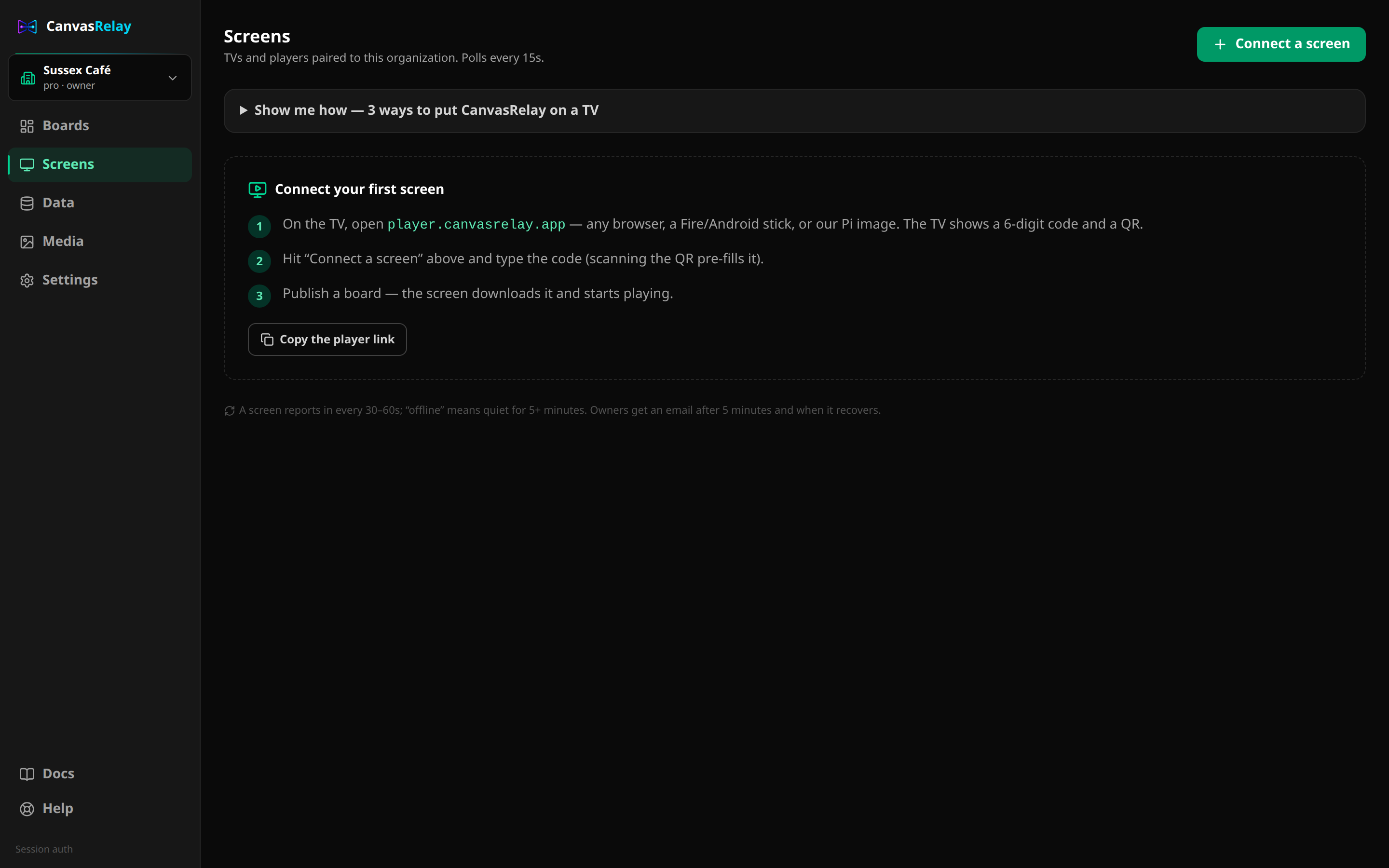
The TV shows a 6-digit code and QR; you claim it in the dashboard. Revoke a screen and it returns to pairing on its own within 90 seconds.
Online/offline from real heartbeats, feed version vs latest with a '2 behind' alert, player version, viewport, and deployment state — downloading, active, or error.
Players report their current scene and resolved values; the dashboard re-renders them through the same engine the TV uses. Trustworthy proof without screenshots.
Silent for five minutes and owners get emailed; recovery sends an all-clear. Screens keep playing cached content the whole time.
Reload, clear cache, or pop the on-screen diagnostics overlay from the dashboard. The player acknowledges each command on its next heartbeat.
Scene-shown events are logged per screen — 'times shown / last shown' per scene in the board view. Enough to answer 'did the promo actually run?' without a full analytics bill.
Open the player on the device, and it shows a 6-digit code and a QR code. Enter the code in your dashboard (or scan the QR), pick a board, and content appears in seconds. No IP addresses, no USB sticks.
Every player heartbeats every minute with its feed version, cache state, and what's on screen. The dashboard shows online/offline status, how many versions behind a screen is, and a render view that re-draws exactly what the player reports.
The screen keeps playing its cached content indefinitely. If it stays silent for more than five minutes, you get a dashboard banner and an email — and another when it recovers.
Usually. Remote commands cover reload, clear cache, and a diagnostics overlay that shows the device's version, cache, storage, and recent errors — the information you'd otherwise drive over to collect.
Open the editor right now — no account, no download. If you like what you make, save it with a free account.
Try the editor — no account neededFree plan includes one live screen. No credit card. No trial clock.